Showing posts with label Outlook. Show all posts

15 February 2018

Using Outlook in conjunction with your organiser

Microsoft Outlook has been around since the late 1990's, I think the earliest version I ever used was Outlook 97 which came with Office 97.

Outlook is intended to do the following:
  • Email
  • Calendars
  • Tasks
  • Contacts
  • Notes
How well it does all of these functions is a matter of opinion! I'm sure we have all had to deal with Outlook in our work life at some point. The last time I seriously used it was nearly 8 years ago and then it was the Windows version! I have the latest version on my Mac, but I've honestly not tried to use it.


In the past I've used it to create simple diary inserts! This was before Ray and I got together to do our magic. 

Looking at the list above it does seem to copy a lot of the functions you might be using your organiser for? I'm not going to try and convert you all in to abandoning your paper organisers.... hell no!!

However, I'm sure some people are almost forced in to using Outlook or a similar set up at work, but you still want to use your paper organiser/planner. Can you blend the two together? 

I watched this recent video by Joshua LaPorte, I know a lot of you follow his videos and they are excellent at exploring how we use our organisers.

If you haven't watched his latest video, please take time to do so. 


After watching this and thinking about how Josh is now blending Outlook with his Van der Spek organiser, it created this image in my head of Outlook being a fast moving Motorway / Freeway / Autoroute / Autobahn (use the appropriate phrase for your country!). With his organiser being the service stations along the route where he stops to collect his thoughts together at regular intervals.

The advantage of this way of using the two systems of course means his colleagues are kept in contact with his schedule and his other tasks and notes can come in and out electronically.

However, Josh sets aside times in his busy schedule to gather together his thoughts, tasks, appointments and brings them together in his paper organiser to keep himself focused. Some of us refer to these times as 'Planner planning', it is something we have mentioned on the podcast several times.

Planner Planning is something I do either late on a Sunday evening after I have finished my regular scheduled conference call on a Sunday evening or after I've had my breakfast on a Monday morning.

It is then I gather together any outstanding tasks and transfer them forward in to the current week. I also scan through the paper diary and the electronic calendar to make sure they are roughly in sync with each other.

It is normally new events on the electronic calendar that I need to make a note of on my paper diary insert and trip planner.

Then during the week I add things to my pages as they crop up or as I think of things that need doing.

I don't find this way of working too stressful or inconvenient, I feel in control and I'm less likely to overlook something or miss an appointment that way.

What about you?

28 August 2011

Monthly View Calendars

I needed to do some future planning the other day of the next few months on several fronts. I thought a monthly calendar page would be helpful for this to go at the start of each month in my A5 Malden which I am using the page per day diary insert.

I started playing around with iCal, but I found it quite slow inputting things, then I realised... why are you attempting to use an electronic calendar... so I closed the application went for a walk, watered the sun flowers, said good evening to my neighbours, walked the length of the garden, let my brain work through what to do to create a monthly calendar.

OK I thought, I could do my old trick of using MS Outlook to generate a calendar, but none of my existing appointments are on Outlook any more. No that won't do.. how about Google Calendar? I've used it for some time it mainly holds all my birthday reminders, I also tend to put things on there, so the rest of the family know were we are going to be etc.

So Google Calendar, it's free, all you need is a Google account or a Gmail account and there you have a calendar with Day, Week and Month views... ok if you have used Google Calendar you know what it can do... yes? The one button I had over looked... the print button!

What does this do... it offers different layouts and options for the current view (Daily, Weekly, Monthly) and it gives you a preview. When you click on 'Print' it sends you a PDF file, which you can then review before you print it. I tried this out with a couple of monthly layouts.


Both are quite a nice simple clean un-cluttered layout. I tried punching the sheets after printing them on A5 paper and found that the margins were not quite right but a small adjustment in the scaling setting on the printer to reduce the grid by a couple of percent did the trick.

So then I revisited iCal again, but this time with only a blank calendar and tried a similar trick with that.

Again quite a nice clean layout, but this one offers the mini calendar as a option for the previous month, this month and next month. If you turn off that option it expands the month grid in to that space. When you go to print, it will let you print to a printer or to pdf. Again with a little bit of adjustment to the scaling I managed to get it to fit an A5 sheet of paper without the punched holes causing problems with the printed text. I quite like the way they grey out the days of the previous month and the next month, so it concentrates your eye on the current month.

iCal of course is only available on the Apple Mac, but with Google Calendar, Yahoo Calendar, Hotmail Calendar all offering similar free on-line calendars, that you can print out, then there are quite a few options available for people interested in having a diary insert customised to their own requirements be it printed on high quality paper, or with different timings during the day etc.

I'm finding having a monthly calendar at the start of each month is a great boost to my ability to plan each month up to the end of this year. It is particularly useful for holidays and events that extend over several days.  Give it a try.

18 June 2011

A5 Week to View Diary Format

I've been tinkering with Outlook 2003 again to try and find a format that would meet the needs of a lot of Philofaxy followers, who like me like to see a full week, but also need some space for To-Do's and Notes.

If you have been reading the blog for any length of time this is a bit of a reoccurring topic for me! I've tried the Quo Vadis Planner series which are a vertical format, whilst that works for me. However, the QV inserts loose Sundays on the page. So may be not that useful for most people.

I've previously looked at Outlook and there at least a couple of posts on using it to print out blank diary inserts. Although if you wished you could create your new calendar with your birthdays and anniversaries already on the calendar in Outlook. I'm currently only using Outlook 2003, but I suspect later versions offer similar layouts?

So this time I looked again at the Weekly style and by adding the Task Pad and Notepad. Remembering to add some 'blank' tasks as I mentioned in my previous post to get it to put in the blank tasks. This time I played with the font sizes to give you more space in to which to write in to.

So this is what it looks like:

And here are the settings I used to create the page above, which I booklet printed on A4 size paper to give you A5 size pages.


This I think is quite close to a nearly ideal lay out the only downside I suppose is the half size spaces for Saturday and Sunday. I can't see a way of swapping the Notes and Task Pad around, Outlook is fixed in where it locates them as shown above, and if you don't have Notes the space for each day on the right hand page is increased.

I've previously used a similar layout to this for my A5 diary back in 2005 when I started using my A5.  I might print out enough pages for say a couple of months and give it a try again in one of my A5 organisers.

Here are previous posts on this topic:

07 April 2011

Creating Your Own Diary Using MS Outlook - Revisited

Everyone wants the 'perfect' diary for them, be it a particular format or a particular layout. Or is it that you would like better quality paper because you are a fountain pen user and you don't like the 'bleed through' you get with the standard offerings.

We have covered alternative suppliers such as Quo Vadis before. However, you might already have a source of that perfect diary available on your PC/Mac in the form of Outlook.

I'm not suggesting that you start keeping your appointments on Outlook and in your Filofax. I'm just suggesting you use Outlook or a similar application to create a blank diary insert covering the period you want.

My previous post last year about using Outlook covered most of the formats available, but you might want to revisit the various options you can select from within the Print Style menu. Day per Page or Day per Two Page are available, as well as weekly and monthly formats. Notes areas either lined or blank areas can be added. In weekly formats you can have vertical formats  (Left to Right) or a conventional format (Top to Bottom)

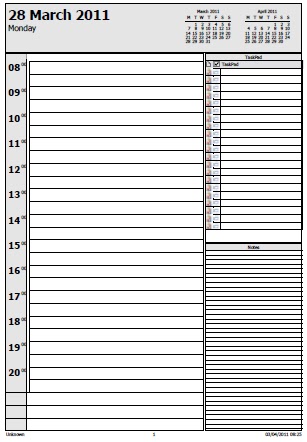
If you select the 'Task Pad' to be included, it of course only includes the tasks from within Outlook. Now I like the idea of including To-Do lists on diary pages, but I like to be able to write them in myself and have the tick box. To get Outlook to add tasks I simply created a dozen or so blank tasks that just have a 'space' in the subject field. These 'blank' tasks will then appear on your diary when you select that option. The picture on the right used this tip to add the task lines.

Now selecting paper for your diary, don't forget to check what paper your printer can handle reliably. You need to look at the paper specifications for your printer. Some printers have different paper handling specifications for the manual feed tray compared to the normal paper tray. The figure you are looking for is the range of paper weights which is often quoted in grams per square metre or gsm.  The thicker the paper the heavier it will be, but also remember the less pages you will be able to fit in to your Filofax, unfortunately you can't alter the basic physics of this.

You might want to purchase your paper locally, this way you might be able to get some sample sheets of paper to experiment with using your favourite ink pen to check to see that it doesn't smear or bleeds through to the other side. You can get paper similar to the much loved 'Cotton Cream'

If you are printing your own diary you don't have to print the whole year in one print, you can break it down in to each month, change the colour of the paper even for each month, use tabbed month dividers without the usual problems associated with Filofax diary inserts.  You can also print mixed formats to cover the year, say three months of day per page format, then say weekly formats for 3-6 month range and monthly layouts for 6-12 months, so the closer you get to events the more detail you can include.

You will also need a paper punch and we have covered these in various posts before. Printing A4 or A5 is fairly straight forward, but it is possible to also print your own personal size diary.

I think it's worth experimenting with trying out your own format rather than a preprinted one, you might find something that makes your Filofax work far better for you.


14 August 2010

Microsoft Outlook Calendar > Filofax

No I'm not suggesting you all abandon your Filofax diaries and start using MS Outlook instead...  perish the thought...

Actually I have used printed versions of Outlook calendars in my A5 Filofax. If you look at the picture in the header of the blog, that is in fact an Outlook calendar that was printed out in A5 format. It happened because I bought the wrong format diary refill that year!

So why use Outlook. Well there are some small advantages, for instance you could record all your annual reminders in Outlook: Birthdays, Anniversaries etc. And these will then appear on your printed diary.

Another advantage I suppose is you can change formats partly through the year or even if you need a more detailed week you can change for that week even.  You don't have to print a whole year, just the days you need.

Outlook offers a number of different page styles in daily, weekly and monthly formats. It also gives you the option of 1 or 2 page for each of the above. You can add notes areas on the pages as well.  There is a preview facility so before you hit the print button you can see what you are going to get.

I would recommend doing short date ranges first to make sure you have things set the way you want to before you go for broke and print off a whole year, get it wrong and it could work out more expensive on ink/toner and paper.

Printing calendars for an A5 is achieved as I described in an earlier post, you set it to A4 and booklet print it and you will get A5 pages.  Printing A5 from A4 is fairly easy as the pages will match each other on both sides of the paper. Outlook does offer paper size and page size variations. So printing three personal pages on a side of A4 is possible but the alignment of the pages when double sided will depend on the accuracy of the alignment of your printer. My best advice is to experiment on a few sheets first, print them, cut them out, punch them and see how well they fit.

Give it a try you might find the format or layout you have been looking for. I hate to admit this but Outlook offers one of the best variety of calendar styles I have found that you can customise and print out.

Below are a few sample pages printed out.


.