Showing posts with label Printing. Show all posts

28 May 2026

Booklet Printing - Update

In a post back in 2024 I shared my frustration with you that Booklet Printing had seemingly disappeared from MS Word and at the time I wasn't sure who to blame until the finger pointed at Microsoft as the culprits. 

In that post I shared a variety of work arounds on how to print in booklet format again, none of them very elegant. 

Well either Microsoft have realised the error of their ways or they hid it from view but booklet printing is back... 

MS Word365 Mac

Tucked away in the 'Pages per Sheet' option in the Print Dialogue box at the bottom of the list 'Print As Booklet' is there! 

Easy for Mac users then!! 

Windows users it's a little more involved, but I fount this support page: 

https://support.microsoft.com/en-us/office/create-a-booklet-or-book-in-word-dfd94694-fa4f-4c71-a1c7-737c31539e4a

And yes it worked: 

MS Word 365 Windows 11

As with any change to your workflow I strongly suggest that you experiment by just printing say the first 8 pages to check that the results are as you expect them to be, rather than printing the whole file and then discovering that printed results are only worthy of the recycling bin. Lots of wasted paper and ink/toner. 


21 November 2024

Diary inserts for 2025


Have you got your diary inserts ready yet for 2025? 

We have all our inserts available on this page: Diaries 2025 

That page also contains hints and tips on printing the files as well as access to our whole archive of source files that you can download and adapt to your own needs. 

I also did a post recently about printing A5 inserts that you will find here: Printing Inserts in 2024 and beyond...' 

If you get stuck you can either comment below or contact me by email: philofaxy at gmail dot com 

26 August 2024

Printing Inserts in 2024 and beyond...'

I have been promising you this post for some time. I apologise if you have been struggling, I have been too. Let me explain by first going back in time, it might help you understand the issues a lot better. 

We started sharing our inserts back in 2012, although I was using them from about mid 2011 and as time progressed so the 'suite' of inserts grew. We have parred down the inserts we pre-prepare to a manageable number now, but the source files are available for the older ones for you to create your own for any year you wish. 

You will find our inserts here.

Creation of the files is one part of the equation, that over time hasn't really changed. Word and Excel have had some upgrades but that hasn't stopped us being able to create the finished product. 

What has changed is the ability to print the files, specifically if you want to print A5 inserts. The smaller sizes on A4 is simple double sided printing, that works as it always has. 

Our A5 files are formatted to A4 size, which when you booklet print them on A4 paper come out as A5 pages. You just then have to cut the A4 sheets in half and punch them. 

Why booklet print? 

  • A4 paper is freely available, it's the most common size of paper (well here in Europe). 
  • Printers can duplex (print both sides) of A4 paper. Do you know of a printer that can duplex A5 paper? Let me know in the comments. 
  • I can buy A5 paper but printing direct to A5 takes time and patience! 
A couple of years ago, an update to Word removed the option for booklet printing. At the time I wasn't sure if this was a MacOS change, a change to Word, or a change to the HP printer driver. I looked on line and lots of people had the same issue, but no one seemed to know what the root of the problem was. 

At the time I just used an older Mac with the old version of MacOS and Word to print my inserts, job done for another year. 

As time passed I wanted to find the solution to this issue, I eventually narrowed it down to being Word that had changed. They have removed booklet printing and replaced it with 'Book Fold' as a layout setting. It's explained on this support page. 

We have an answer? Well not quite, you have to reformat your document to get 'Book Fold' to work. And that would force everyone to having to use booklet printing or creating two versions of the same insert. Not something we liked the idea of.

Printing from PDF.

After looking for alternative solutions to this issue and consulting with Ray, we came up with a simple solution (or I thought it was at first) and that is to print the PDF of the files instead. In Word you can export to PDF and that works just fine. 

Adobe Acrobat PDF Reader includes Booklet Print as an option. The one issue I discovered was that MacOS and Windows 10/11 aren't the same in terms of the options available. It also seems to vary depending on what printer you are using. That has been the stumbling block to putting out this post. 

Therefore, you need to be aware that you might need to create a short 4 or 8 page document to experiment with before you tackle your full size diary insert printing. See the end of this post.

I strongly advise making notes on what settings you are using because I found that the software will often reset to its default settings after you have closed it. Helpful that.... not!

What worked for me was to print the pages as an image, this got rid of the extra margin that the PDF reader was adding around the pages. The printed pages were slow to print, but they didn't have massive margins. The ability to do page as an image varied between MacOS and Windows and also what printer I was using (I only have two printers) Therefore you will need to experiment with your own set up.
 
Accepting the small additional margin did change the look of the printed file compared to the file you will see on the screen, but it was acceptable. 

You could restructure the source files to allow for this extra margin, but we will not be altering our source files for this because I suspect that the additional margin might vary depending on what printer you are using. Printers have different printable area and margins.

LibreOffice Writer Version 24.2 
There is another solution to this issue that I have been testing and that was to use Libre Office Writer.

This is an Open Source version of an Office Suite of software including all the usual functions. It started life as Star Office and Open Office, it's developed a lot over the years and it a standard install on Linux operating systems. I don't think it can handle doing the mail merge of our source files (I've not tried it....yet) but it can read in Word and Excel files and importantly it still offers booklet printing. 

I discovered this of course after I had spent two days trying to solve the issue of printing my 2025 inserts!

However, LibreOffice is available for Linux, Mac and Windows. It comes in a variety of flavours including for older 32 bit systems, so it might be the easiest and cheapest solution. I have it already installed on my Linux Mint machines and I've also installed it on a Windows 11 machine.

If you are new to LibreOffice Writer and you are only using it to print off the diary insert files. There are some settings to check/alter before printing. Again use the test files before sending a full year to the printer. 

I found: 
  • I had to check that the printer had the duplex printing option installed. 
  • For booklet printing it was set to bind on the short side. 
  • If on opening the document you find the format of the document isn't correct, check the 'Page Style' in Format for the page margins, I generally set the top margin to 1cm and the bottom margin to 1.4cm. 
  • In the print option select booklet print and you should see it correctly in the preview window.
  • Printer Settings: Print Both Sides, Short Edge Binding and Landscape pages. Also check it is set to A4 not Letter size

Test Document: When printed using booklet print you should get all 8 pages printed in the correct order when folded on two sheets of A4 paper. I used these to test out the different software.
I found plenty of additional help on this topic via Google. 

Printing direct on to A5 paper. 
In some ways is easier except you can't duplex it apart from manually, (with my printers at least). 

Printing direct to A5 paper hasn't changed, you just set Word to print to A5 paper, scaling down the page size to 71% and to only print the 'Odd page' numbers first, then flip over your paper stack and print the 'Even page' numbers. 

In both runs make sure you are printing in normal not reverse order, also be sure to stack your pages the correct way around and in the right order for your printer, which side gets printed varies between printers. Again doing a test print of a 4 or 8 page document will iron out those things. 

Why print your own inserts?
By this point if you are still reading this you might be wondering why do people even print their own inserts? 

It's not because it is cheaper, I prefer to print my own because I then have: 
  • full control over the whole process, 
  • the layout, 
  • the holidays contained on the pages, 
  • the lack of multiple languages, 
  • not having QR codes on each day, 
  • the choice of paper that works with pens I use.
  • Assurance of continued availability of a particular layout that works for me.  
The future. 
Maintaining the ability to being able to create my own inserts and print them each year is an on going process. The end result might look the same, but the process to get to the printed pages seems to have to evolve as software and hardware changes, so I will be revisiting this topic in the future I'm sure. 

If you have any hints and tips please share them in the comments, I know I've not exhausted all avenues on this topic by a long way. 

Thank you for your patience and if you need any assistance please contact me by email, details on our 'About' page. 

16 October 2023

Printing Inserts


For many years I've used Booklet Print to print my Philofaxy inserts on to A4 paper, this prints all the pages double sided as A5, four pages per sheet. 

All I then had to do was cut the sheets in half and punch them. Easy..... or it was..

A couple of years ago Booklet printing vanished from the print options. The problem I had was who was responsible for this change was it:

  • Microsoft, because of a change/update to Office365
  • Apple for upgrading MacOS
  • HP for changing the printer driver on MacOS
I searched the internet for answers on all three support sites above, but apart from finding lots of people asking the same questions, I got no closer to finding what the cause was. 

To get around the issue I discovered that my old iMac running an older version of MacOS and therefore an older (no longer supported - in big warning messages) version of Office (Word) did have booklet printing. I was therefore able to print off my inserts using that machine, to the same printer as before. Problem solved. 

Well sort of.... I did the same trick the following year as well, but this really wasn't going to be a long term solution I wanted to get to the bottom of why booklet printing was no longer available. 

I discovered that the culprit was MS Office 365. They had replaced 'Booklet Printing', with 'Book Fold Layout'

This change however is not going to be a simple settings change, it will mean a redesign of the diary inserts files to be able to use it. Back to square one ! I will need to have a discussion with Ray Blake before considering this change. 

I've printed this year's inserts straight on to A5 paper, printing the odd numbered pages first. Putting the paper stack on a flat surface with a stack of heavy books on top of them to take any curve out of the paper before printing all the even numbered pages. Then just punching them and curving the corners. 

Printing the PDF files will do the trick:

https://helpx.adobe.com/uk/acrobat/using/ways-print-pdfs.html


17 September 2017

Paper sizing and scaling - Update

It is the season of printing inserts ready for the new year. A season of confusion may be, trying to remember all those things about sizes and printing and print settings.

You are nodding your head I know! It is ok even I have to think hard about this stuff annually.

It wouldn't be so bad if you used this information every week, it might become second nature, but for most of us it is information we only use once or twice a year. 

So let us start with a picture. 


The three different sizes shown A5, B5 and A4 are common sizes. I've added the dimensions to show their actual sizes.

A4 is twice the area of A5, A5 is twice the area of A6 etc. Similarly B4 is twice the area of B5, B5 is twice the area of B6 etc.

These three sizes are all ISO216 paper sizes, ISO216:2007 specifies three different series of paper sizes, A, B and C. One thing in common is that the ratio of height against width is the square root of two. So if you multiple the width by 1.4142 (the square root of 2) you will magically get the height to within 1 mm. Alternatively multiple the height by 0.7071 and you will get the width of the page.

Because they follow this pattern we can easily scale from one size to another when printing. So for instance if you have a Word file that is set to A4 size to print it on A5 paper you scale the page by 0.7071, or more conveniently 70.7% or 71% if you can't input a decimal number.

Note that the reduction between each size is not 50% even though the smaller size has half the area. The scale factor for reduction is calculated by dividing the longer edge of the smaller size by the longer edge of the larger size (or the shorter edge of the smaller size by the shorter edge of the larger size).

Using that rule we can devise how to go from A4 to B5, so we take 250mm and divide it by 297mm to get 0.841 or just 84% should be close enough. 

What is the significance of B5 size you might ask.... B5 is Deskfax size, whilst Filofax have discontinued this size years ago, it still remains a popular size, although printed inserts for this size are difficult to come across. With the knowledge of the scaling factor of 84% you can take any of the Philofaxy diary inserts intended for A5 size and print them at 84% and you will have Deskfax pages.

All the Philofaxy diary inserts for A5 are in fact sized to A4 this is so if you use the 'Booklet' print facility available on some printers they will be printed the correct size on A4 paper (two pages per side) If you are printing the files directly on to A5 paper you have to scale the print to 71%. 

To help you remember this information I have created an 'aide memoire' which you can either put on your notice board or print out and put in your organiser. 


  • Popular Paper and Page Sizes (notice board version) - .docx  or  .pdf
  • Popular Paper and Page Sizes A4/A5 version - .docx  or  .pdf

Of course if you have any questions pop them in the comments below.


22 January 2015

Printing A6 Inserts/Pages

Printing of any inserts or pages often causes lots of people problems, wasted paper, increased stress levels, the list goes on. But with a bit of thinking and a bit of practice it is actually quite straight forward.

Today's post is really about printing A6 inserts, but it would equally apply to A5 ones as well... remember the proportion rules...

A6 paper is 148mm by 105mm (5.827 x 4.134 inches) I think it's easier to measure accurately in mm!

How you approach printing your inserts will naturally depend on what printer you have and what paper feed arrangements it has. Not all printers can handle paper as small as A6. That said I was surprised to discover that our HP Laserjet printer can print from the paper tray not just the manual paper insert tray.

So I thought I would give it a try. The first issue I encountered and not surprising really is that the duplex feeder can not double side paper smaller than A4/Letter size, so I had to opt to print single sided and print Odd pages (Page 1,3,5 7 etc) first, reinsert the paper and then print the Even pages (2, 4, 6 etc)

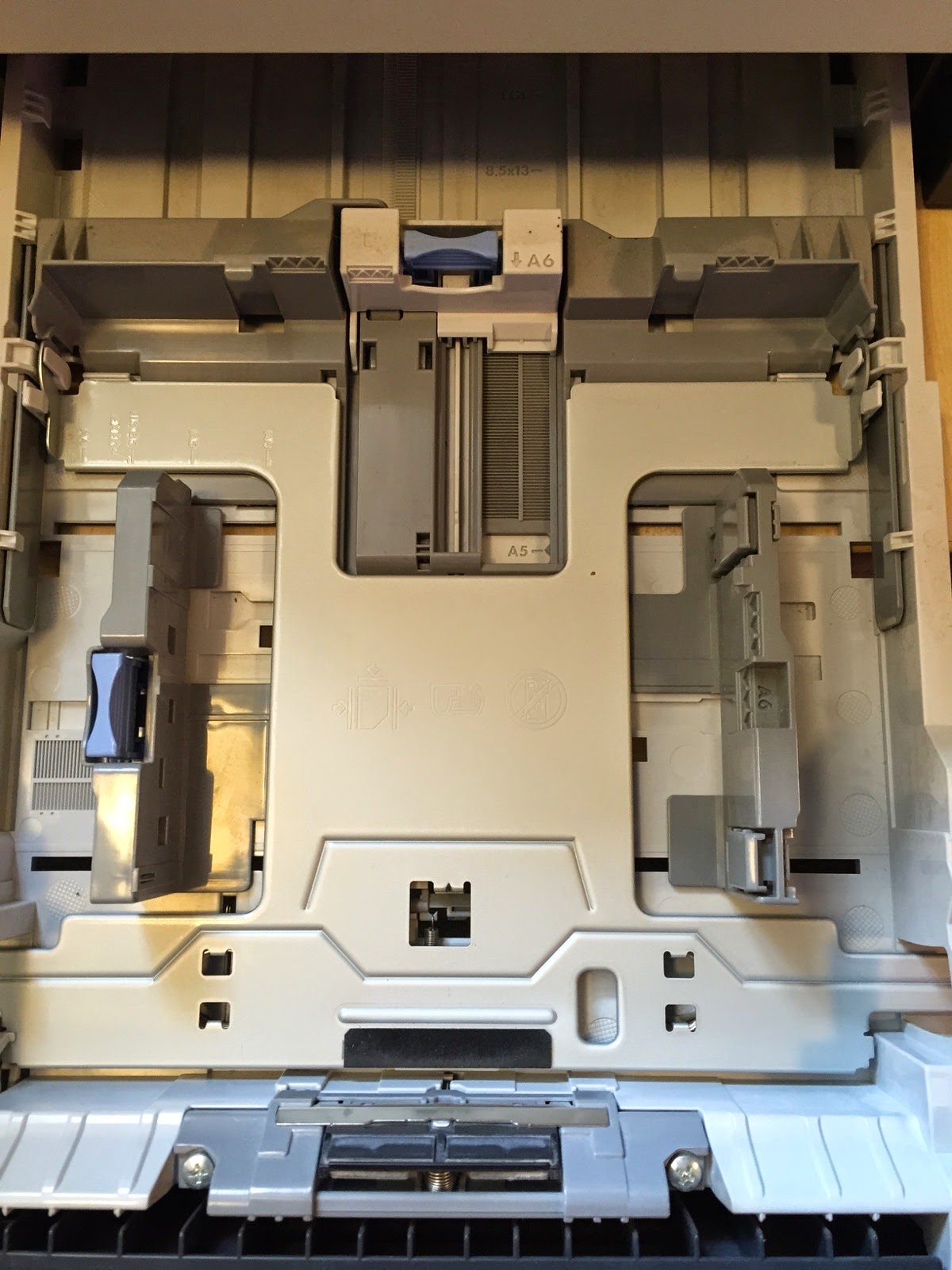
OK let's step back for a second. Open the paper tray on your printer if it has one and what do you see?


So the paper is held in place by moveable 'side cheeks' and a moveable 'end stop' They normally have markers as to where to move them to.


So with the A4 paper removed I first of all wanted to print some A5 pages to show you. So I moved the side cheeks in and the end stop to the A5 location and then printed off the pages. First one side then the other. Which way the paper feeds will depend on the printer. In my case the 'head' or top of the page is at the front of the paper tray or the bottom of the picture in this case and the side to be printed is face down in the tray. So the paper does an S shape through the printer to then come out face down in the output tray.


23 December 2013

Filofax Print to File Software (USA only)

I'm grateful to Filofax USA who sent me a trial version of their Print to File software.

This software lets you print 'regular' documents out on to Filofax size page formats easily. It is intended to be used with their own A4 or Letter size computer pre-preforated and punched pages, but it will work with regular plain paper too which you can then cut and punch yourself.

The software will only work with Microsoft Windows machines, but it works with Windows 95, 98, 2000, NT4, 2003, XP, Vista and Vista 64 bit. It reads like 'All my yesterdays' of computer operating systems. I tested it on Windows XP, I don't have anything newer than XP so I can't vouch for it working on Windows 7 or Windows 8/8.1

The software once installed adds an extra 'printer' to your set up which you then print to from any application. This new Filofax Printer then in turn formats the output to the correct format for the Filofax page size and format and then prints this on to the printer you have set up from within the software.

Once set up it is fairly easy to use. You can also save files to disc for future reprints as well.


The software can handle double sided printing too, so you can maximise the amount of text etc that ends up on your Filofax pages.

As the software supports both Letter size and A4 size paper, I don't understand why this software isn't available on the Filofax UK website for purchase? I'm unable to purchase it legitimately from Filofax USA because my credit card billing address isn't in the USA.

During the short trial period I was able to do a few 'test prints' which all worked flawlessly, but they all get a 'Trial Version' footer added to the bottom of each page.

So if you are struggling with printing your own pages from Word or Excel for your Filofax organiser, this is a great solution... assuming you use Windows of course... and you are in the USA.

Here is a link to the website to purchase a full copy.

19 June 2013

Printing Your Own Diary Inserts

I frequently see our diary inserts in use on blog posts and it is great to see them in use. However, there are a still a few people that struggle to print them for one reason or another.

To be able to give people step by step instructions covering every possible printer/computer combination with all the different versions of Word and all the different types of printer is just not practically possible. So I hope to be able give you enough hints and tips to help you identify the problems you have when printing the files out.

Paper
First of all we are going to discuss printing on A4/A5 paper, this covers the majority of the inserts available.

If you are in North America ISO standard size paper (A4/A5) is not readily available you generally use Letter size paper which is not the same as A4.

Lime Tree did an excellent post on printing inserts which she fully explains the differences in size of A4 and Letter size paper. If you don't have A4/A5 paper, I urge you to go and read that post now. When you have come back and continue from here!

If you are changing your computer/printer set up from printing on Letter size paper to A4/A5 paper you will need to adjust the settings on your printer and your computer so it knows you are printing on A4/A5 size paper, if you don't tell it you will get some odd printed results because of the physical different in the paper size in both width and length. Making these changes is going to vary from one operating system (Windows, Mac OS) to another. Try looking at the Help pages in Word and for your Printer on how to change these settings. 

Printing for A4/A5 organisers. 

If you are printing inserts for your A4/A5 Filofax personal organiser then it is relatively straight forward. A4 will just print straight on A4 paper, no scaling required, set it to print double sided and all should be fine.

With A5 on A4 paper you will be using booklet printing this setting isn't available on all printers. Your printer will need a duplexer fitted to it, so it can automatically flip the paper to print the other side of the page.

This what a typical set up window looks like for booklet printing:


Because Page One is a 'right hand page' as shown above, if there is a blank page at the beginning of the file you are printing, it's essential to 'print' that first blank page because the diary will then be in sync with the page turning with pages 2 and 3 facing each other. All even pages being 'left hand' pages and all odd numbered pages being 'right hand' pages


This is page one of the diary insert:


Then pages 2 and 3


Hopefully now you will see why it is essential to print that blank page 1..

If your printer doesn't have a duplexer fitted (to automate double side printing) then you will have to turn the pages over manually. The easiest way to do this is to print all the 'Odd numbered' pages first, then turn the pages over, and print the 'Even number' pages.

Note: Printing Word or PDF files

When printing either the Word or the PDF files, it is essential that you set the paper size correct in the application and in any printer dialogue boxes on your PC/Mac. If you are printing on A4 paper, then you need to set the paper size to A4 not Letter or any other size.

If you don't set the paper size correctly then the files will be resized according to the paper size you have selected, despite having A4 paper loaded in the printer.

Printing PDF Files

When you print your PDF file, it prints out smaller on paper than the Word or other file it was created from.

When you print from Adobe Acrobat Reader, you will see this dialogue:


You will see that 'Print Scaling' setting is by default set to 'Shrink to Printable Area? That's the one that's shrinking your PDF when you print it.

Change the setting to 'None':


Now, when you print the PDF it will print at the right size.

Printing Personal Size inserts on Personal Paper
Assuming your printer can handle paper as narrow as Personal Size pages (95 mm x 171 mm) then it is relatively easy to print on to Personal Paper. Filofax sell the plain paper in value packs of their white paper or reasonable quantity cotton cream paper.

The following instructions will help you with both creating your own personal size inserts on personal size paper and printing existing files formatted for personal size paper.

Step 1: Set up your paper size in the programme you are using.
In the example below we are using MS Word, but it works the same way in whatever application you use.

1.1 Firstly, select the Page Layout Tab, and click on the Size icon in the toolbar.


1.2 Scroll down the drop down menu and click on 'More Paper Sizes'

1.3 In the following options window click on the drop down menu arrow for paper size and select Custom Size


1.4 Enter the following dimensions in to the relevant boxes.
Height = 17.1 cm (171 mm)
Width = 9.5 cm (95 mm)
Depending on your printer this box is also asking you were the paper will be coming from for the first page and other pages. It's important to make them the same source. And if your printer has 'manual feed' tray or 'envelope' feed, then select that. Alternatively put the default tray if your printer only has the one feed.


1.5 Finally click OK to confirm the set up of the new paper size.  We now need to set up the margins for the page layout. So select Margins from the Page Layout Tab.


Set each margin to 1cm, the left hand margin needs to at least 1 cm to account for the punched holes. Diary inserts will already have 'mirrored' margins to account for these on each page with the margins swapping automatically.


1.6 Click OK and you are now ready to create your personal size page and then print it on to Personal Sized Paper.

Step 2: Printing

2.1 With your document loaded, select Print and your print box should appear. Select Properties:


2.2 Each printer will be slightly different, so you will have to search through the tabs to find the following settings.

Firstly look for Printer Paper Size, select this and then look for 'Custom'


Then enter the paper size:


2.3 The next thing to do as mentioned in the previous section is to tell the printer where the paper is placed in the printer (Envelope feed, Manual Tray, Default tray)

On some printers you can then save these settings with their own name to make it easier next time.


2.4 Load the paper. Again this is printer dependent. You need to load the paper so it is printed on the correct side first. On our own laser printer the manual tray has this symbol on it:


This indicates that it prints with the upper side of the paper first.   Now our ink-jet printer has the following symbol.


This indicates that the paper is printed face down, so you have to put the paper in the other way up on this one.

So here is the paper loaded in to the tray of the laser printer, ready to print face up, note the position of the punched holes.


The paper is already punched so before you print the pages, fan the paper to ensure the paper isn't 'joined' where the holes have been punched through the pages, otherwise the printer will drag through more than one page at a time!

If you are printing more than one page, select your document to print first the Odd Numbered Pages, then put the paper back in again but reversed to suit your printer, and then print the Even Numbered Pages

Having got this far.... you are now ready to hit print and hopefully your pages will come out correctly!

And here's some I made earlier...


If you have any questions after that rather marathon session, please fire away in the comments.

31 October 2012

Printing Your Own Diary Inserts - Hints and Tips

Since Ray and I created our own diary inserts it has been great to see the number of people that have downloaded them and who are using them is increasing each month. People mention them in blogs, we see them in pictures on blogs, we get links back to the pages as well, which is all great.

But occasionally we do get some messages from frustrated downloaders who for what ever reason just can't get the inserts to print out correctly. It is not easy via an email or message to be able to know exactly what the issue is, with millions of combinations of printers and PC set ups it would be impossible to say what the issue was instantly. But I hope to give you some of the main issues you might encounter. 
  • The files we provide will work on a Windows PC or a Mac or a Linux PC for the pdf files Or any type of machine that can read and print a PDF file.
  • The Word files we provide will work on a Windows PC or a Mac. In fact, Ray uses a Windows PC and I use a Mac and we have never encountered any issues when we have been sending the files back and forth between us, or rather accessing them in our shared Dropbox folder.
  • The diary insert Word files will not work in Pages on the Mac, there are far too many formatting codes and mail merge codes for Pages to make sense of. The static files which are ordinary templates in the files area should work ok, but no guarantees. I use Office 2011 for Mac to create all the templates these days.
  • To print any of the pages you need a printer that can handle a variety of paper sizes with a manual feed tray if you are printing on to personal size paper.  This post will help you set up your pc/printer to be able to print the files on personal size paper
  • If you are printing A5 pages on A4 paper, this post will help you with the set up of your PC/Printer
  • If your printer does not have a 'Duplex' printing facility. You will need to print first one side and then the other. The easiest way is to print all 'Odd pages' first, then put the paper stack back in the feed tray and then print all 'Even pages'  You might need to experiment to make sure there are no issues with the page order, some printers print from the last page to the first page, others the other way around.
  • If you are printing the PDF files do not scale the pages otherwise they will be smaller than Filofax page sizes. The notes on printing here will assist you in checking and altering this setting.
  • All of our designs are created to use European A4 size paper or Filofax Personal size paper. This isn't a common size in the USA/Canada, but it is available from Amazon.com and we would recommend using the right size paper rather than trying to alter the designs to use US size paper.  A4 is 297 mm x 210 mm (11.69 inches x 8.27 inches) A5 is 210 mm x 148 mm. You can of course cut down 11 x 8.5 inch paper to A5 size. 
  • Our designs use a light grey for most of the lines, we personally found this more pleasing on the eye and matches the the sort of design detail that Filofax and other diary makers use on their designs. However, the printed page will depend on your own printer in terms of how light or dark these lines come out. If the end result isn't to your liking you might be able to vary the density of the colour from within your printer settings, but we can't give you details on how to do this.... please consult the manual or the help files that came with your printer.  Alternatively you can go in to the source files and change the format of the lines and re-merge the files.
  • Our designs are all created for a week starting on a Monday, we can't change this to Sunday, Saturday or any other day of the week without a major redesign of the files.
  • Our Personal on A4 pages are printed at 2 pages per side because to get the right page to print on the front and rear of the page is complicated enough without the added complication of the the moving of the pages as you progress through the file. Also it doesn't save that many sheets of paper going from from 4 pages per sheet to 6 pages per sheet.

    Additionally not all printers will let you have margins as small as 6 mm which is what is required to be able to print 3 personal pages side by side on A4 paper.
I hope these notes help more of you use our diary inserts.

24 March 2012

Help! PDF files print slightly smaller than they should!!

When printing either the Word or the PDF files, it is essential that you set the paper size correct in the application and in any printer dialogue boxes on your PC/Mac. If you are printing on A4 paper, then you need to set the paper size to A4 not Letter or any other size.

If you don't set the paper size correctly then the files will be resized according to the paper size you have selected, despite having A4 paper loaded in the printer.

Printing PDF Files

When you print your PDF file, it prints out smaller on paper than the Word or other file it was created from.

When you print from Adobe Acrobat Reader, you will see this dialogue:


You will see that 'Print Scaling' setting is by default set to 'Shrink to Printable Area? That's the one that's shrinking your PDF when you print it.

Change the setting to 'None':


Now, when you print the PDF it will print at the right size.

03 January 2011

Printing Your Own Filofax Personal Pages

I have tried in the past to create my own Personal pages, but without a lot of success. I made the mistake of trying to create them on normal A4 paper and then cut out the pages.

A4 is big enough for 3 Personal size side by side with a border around them. The problem I had was aligning the front and back of the pages so when printed out the Personal pages were perfectly aligned.

What I never thought to try was printing directly on to Personal Size plain paper. Well after we published 'Nellie's' Book o Fax post, Alison asked how 'Nellie' printed out her Personal Pages.

'Nellie' has kindly sent in a file that explains it all. I've put it in the files area.
I have tried out this technique on a page I created this afternoon a personal size recipe insert and it works fine. Print one side of the paper, turn the page over manually and print the other side.

I only tried printing one sheet at a time. How well your printer will feed such thin paper will vary from printer to printer, I used an HP LaserJet  2055dn and put the paper in the manual feed tray with the guides set to the narrow width of the paper.

I don't print off many personal pages but having the facility to do it now, I will be creating more personal pages, which of course will appear in the files area.

So you will be needing some plain paper....:

12 August 2010

Printing A5 Pages

If you have an A5 organiser, it is the easiest size to create your own pages for. Anyone looking at my A5 will hardly find any preprinted pages in it, apart from may be some of the original ones that came with it!

So let me try to explain how I do it. It is not complicated, but takes longer to explain than it does to do. Taking an A5 To Do List as an example because I used a lot of these pages.

The first thing you might notice is the document contains 4 pages all the same, in A4 format... Did you forget Steve we are doing A5.... no we start with four pages of A4 and when we booklet print them they become 4 A5 pages on an A4 sheet of paper...

A quick recap about European paper sizes... A4 is 297 by 210 mm and A5 is 210 by 148 mm in other words A5 is half the size of A4.

So the next step is to booklet print the four A4 pages on to one sheet of A4 paper. The four pages then become A5 size pages back to back like the drawing below.


So anything you have in A4 format can be made to fit A5, just by booklet printing it. To be able to booklet print you need a printer that can double side print... either manually or preferably automatically using a duplex attachment. It is worth considering this next time you buy a new printer.

I've only ever used HP printers and all of our current ones which are a mixture of Officejets (Colour ink-jet) and Laserjet (B&W Laser) printers all offer booklet printing. How to get your printer in to booklet mode varies, so I can't attempt to show you all the different ones here, but there is a sample screen below.

If you are using Word in Windows,  go to File, Print and when the Print dialogue window pops up. Click on Properties next to the name of the printer.


Some printers offer you a simple 'What do you want to do' type menu and you simply select 'Booklet Printing' 'Left hand Binding'

In others you might find it under the 'Finishing Tab'' under the heading "Booklet Layout" You might need to experiment a little to find the setting on your own printer but once you have discovered them, note them down for future reference.

Those of you using a Mac then you will also find similar dialogue window by clicking on the down arrow next to the name of the printer to expand the menu. Then on the menu in the middle click on it and then click on Booklet Printing. It's fairly self explanatory from there onwards.

So once your printer is set up, you print out the whole document and you will end up with something like this:

It will be, or should be the same on both sides of the paper.  Cut the page in half and put the outer edges of the original page together and punch them and for each sheet of A4 you will have 2 pages in A5 but double sided and collated correctly.

Once you have mastered this you will find there is no excuse for not having the exact format of page you need for what ever task or project.

If you have any questions please pop them in to the comments and I will do my best to answer them. 
.