Showing posts with label Diary. Show all posts

21 September 2026

Repeating Years?

You have been looking through your 'collection' or 'stash' of planner inserts and you have come across a full diary insert for a previous year, unused and still in the cellophane packet. 

Do you recycle it or can you reuse it? Yes you can reuse it. 

Here are some examples:

  • 2027 has the same number of days and starts on the same day of the week as 1999, 2010, 2021 
  • 2028 has the same number of days and starts on the same day of the week as 1972, 2000
  • 2029 has the same number of days and starts on the same day of the week as 2001, 2007, 2018

Obviously it extends beyond those date ranges and in to the future as well, you can find out more by looking at this website: https://www.timeanddate.com/calendar/repeating.html?year=2027 

Have you ever reused a previous years diary insert without redating it?

11 December 2023

The Golden Rules of How to Use the Philofaxy Diary Inserts


There are some simple basic rules to using the Philofaxy diary inserts. Follow the rules and you should be able to produce your own inserts successfully.

If in doubt or if you are still having issues then contact Steve by email steve at philofaxy dot com.

1. Make sure you have downloaded the correct files. We offer 'pre-merged' versions in Word and PDF versions.

The Word ones tend to be less trouble to print than the PDF files. The 'Pre-Merged' versions are the ones that are ready to print, fresh out of the box, you can modify them, but you will have a lot of work to do!.

Also read the notes on printing below, which apply to pre-merged and modified files.

2. If you want to modify one of our inserts, may be to add some colour, or to change the fonts (within reason) then you need to download the source files, this is a Word File and an Excel file. The Word file will only be 1, 2, or 4 pages in length. (hint!) The Excel file contains all the date information.

There aren't different Excel files for different years, you just change the date in Cell A2 and save the file and then you will have a file to create a new 12 months worth of inserts. In the post 2020 Revamped series you just change the Year in the Year sheet. 

So you can do any 12 month span from this file. We are traditional in doing Jan-December, but if you wanted to do an Academic Year then just set the start date in the Excel file (Cell A2) to your term start date.

3. After doing your mail merge on a source file there are a couple of things you need to do on the new file it creates.
  1. Firstly you need to remove the section breaks from the whole file. To do this the easy/quick way. Do a Find and Replace, in Edit, select Find, Replace. Set Find to ^B (Section Break) and leave the replace blank. It should report finding the number of section breaks depending on the type of insert. 52 in the case of a Week per View insert. 
  2. In the case of a 'Per View' e.g. Week per View (Week on two pages) Month per view, type insert, you need to insert a blank page at the start of the file. So put your cursor at the start of the file and 'Insert' 'Page Break'  
You need to remove the section breaks so that the page margins are correct as they are 'mirrored' margins so the pages will appear to go 'left, right, left' as you scroll down through the file. This is to allow for the binding/ring margin. 

The extra blank page is required to make sure that the pages when printed are 'in sync', without that page the first page of your  Week per View would be on one side of the paper, and the second page on the reverse side of the same sheet, not very easy to use. 

4. If your modifications didn't work out, just go back to your source file make some modifications and try again. Limit printing to say the first 4 or 8 pages, so you don't waste paper. 

5. When printing your files always print in 'Normal' order ie page 1 first, not in Reverse or Collated order. The actual terminology will vary depending on the make/model of your printer and the way in which the sheets are printed, so it is not possible to give any concrete information on what to look for. 

Do a test print and note which page gets printed first, if it is page 1, then page 2 etc you are in business. Printing in the reverse order will often end up with your pages out of sync (not facing each other correctly) 

6. You must not use our files in their downloaded state or modified state for commercial reasons, so please do not sell them. Share them for free of course, but please do not try to profit from our hard work. 

Those are the main rules, but there are several other things that pop up frequently that I will address here. In no particular order. 

Q1. Why don't the files include Week Numbers? 
A1. There are three standards for Week Numbering used in the World. USA uses one standard that isn't the ISO standard for Week Numbering that the majority of the world uses. Given that Microsoft is in the USA, therefore you have to 'break' Excel with macros to get it to produce Week Numbers to the ISO standard!! 

Also we wanted to make our files available to as wide an audience as possible without there being any issues of differences in location. 

Q2. Why do you use Monday to start the week and not Sunday? 
A2. Again this varies depending on your location. The ISO standard for Weeks sets Monday as the start of the week, and the USA, Canada and Japan don't follow the ISO standard. 

That said you are welcome to modify our files to do Sunday start if you really can't live with Monday start. Some examples have been shared previously. See here and for monthly here.

Q3. 'I can't get A4 paper where I live, where can I get it from?'
A3. Take a look on Amazon USA it is available outside of Europe and the rest of the world that uses ISO page sizes. 

Q4. 'All of your files are A4 not A5?'
A4. Yes that is correct they have to be if you are going to use the booklet printing facility on some printers. 

If you are going to print straight on to A5 paper, then scale to fit A5 or by a percentage of 71%

Q5. 'My pages aren't printing correctly, can you please check the file'
A5. Make sure you are printing the file from page 1 not the last page. It is possible we have forgotten to add a blank page to the front of the file, we are human after all! 

Q6. 'The margins are coming out all wrong when I print your files'
A6.  Make sure you are printing on the correct size of paper for the file A4, A5 or Letter size paper. A4 is not the same as Letter Size paper. 

If you have created your own file from our source files, make sure you have removed the section breaks as mentioned in Golden Rule 3 above. 

Q7. "Will you do me an insert with x days and y days missing, etc etc?"
A7. We get a few odd requests. Weeks without weekends (Work Week), Weeks that start on a Thursday and bigger space for certain days and not others. You name it, we have been asked it over the last few years. 

If I'm not busy then I will often create a set of files for you from one of our existing files if it isn't too much of a time suck. But I will often point people in the direction of trying to do the edit themselves so they have full control over the final product. As long as they realise they can't sell it. (see 6 above). 

Of course if you get stuck I am happy to help. 

Q8. 'Can you help me with x on y insert?'
A8. Yes of course I've even done things remote on peoples PC's whilst talking to them on Skype, because obviously I can't see what has come out of the printer! But again subject to time allowing we can try to solve any issue. 

I hope this post helps you use our inserts. Learning how to use our files and making your own version and getting them printed can be a steep learning curve, but one worth doing if you want to have an insert that is perfect for you that isn't going to go out of stock, or be discontinued.


30 April 2020

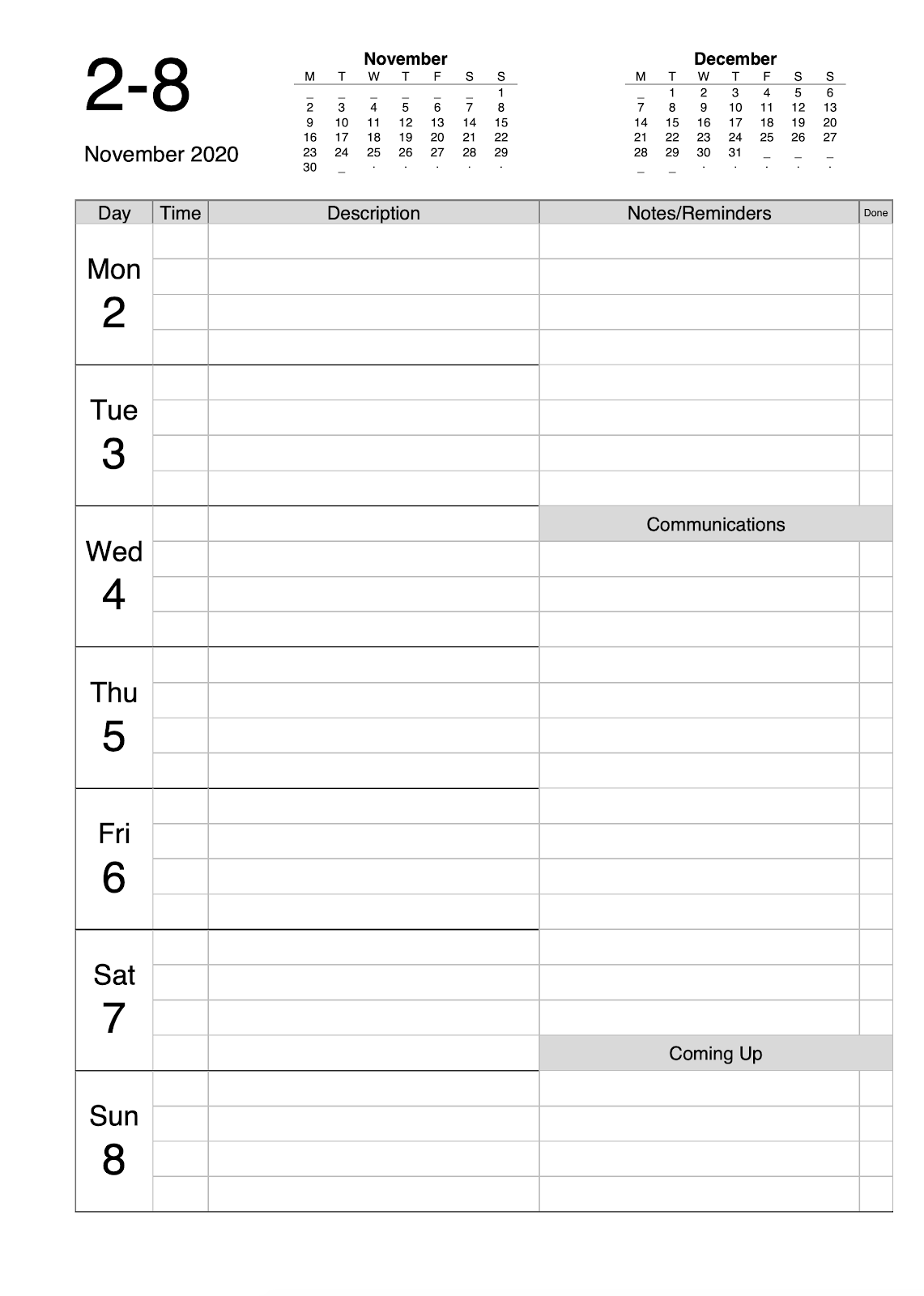
Enhanced Time Manager Week on One Page A5 Diary Insert.

Creative Commons License

This work by Philofaxy is licensed under a Creative Commons Attribution-NonCommercial 3.0 Unported License. Please download, adapt, use, share, but do not charge or use commercially.


'The Times They Are a Changing' sang Bob Dylan a long time ago!

Talking with our readers on the Virtual Meet Up Skype calls we have been having in April, quite a few of us have said that their planning and what their needs for their planner has changed drastically over the last few weeks as Covid-19 has got longer and longer.

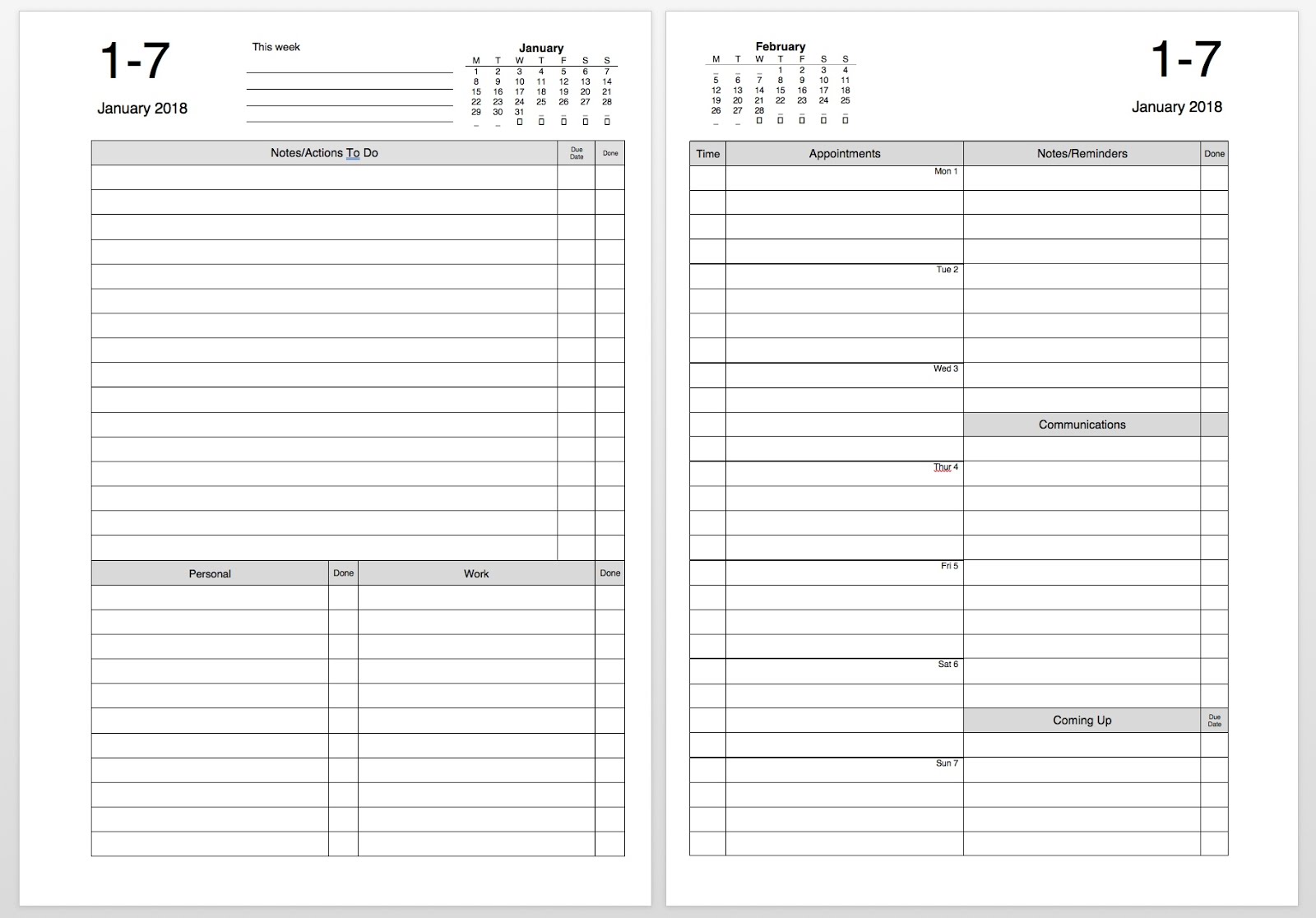
You will all be familiar with the Enhanced Time Manager Week per View (week on two pages) insert that I came up with a few years ago, it has been my 'go to' insert for over 8 years. There have been several variations on this one over the years, but the basic format hasn't changed that much.

So I thought I would try a Week on One Page version of it. It reduces the number of pages you would need to carry.

Naturally you can easily adjust the headings, shading, fonts etc to suit your own needs/requirements by editing the source file and redoing the mail merge.

Source Files:
Note to change the year or the 12 months covered you just need to edit cell A2 of the Excel file. 

You can download finished versions for this year from our diary inserts page.  

When printing note these files are formatted to be A4 page size. Either Booklet print on to A4 paper or Print on to A5 paper scale to fit (70%)

This version will be known as the 'Week on one page Enhanced TM' insert

To customise the files you will need to download the relevant source files listed above. When you've made all the changes you like to the template, you can perform a mail merge to create your own insert for any period you like. Check out our Free Diary Inserts link if you want more information on how to do this, including videos at the bottom of the page.

Once again a big thank you to Ray at 'My Life All In One Place' for his hard work and co-operation with helping to create and support us with all these inserts.

Creative Commons License
This work by Philofaxy is licensed under a Creative Commons Attribution-NonCommercial 3.0 Unported License. Please download, adapt, use, share, but don't charge or use commercially.

13 April 2020

DiY Planner Dynamic Templates

The DiY planner website has been around for ages. It is where I first started to share my Filofax Templates, before I knew about Philofaxy even! I last wrote about their Dynamic Templates back in 2014, so I thought it was time for an update.

They have had their Dynamic Templates for years too, these are generated by an application which will run on a Windows PC or a Mac.

The Windows application appears to run ok on Windows 10 (64 bit) so it should be ok on Windows 10 Home edition and earlier versions of Windows, although I only have one Windows 10 machine these days!

The beta Mac version will run on the latest version of OS X 10.15. and earlier Mac versions for Intel processors, such as OS X 10.13 High Sierra. The normal Mac version works ok on my older PowerMac hardware running OS X 10.4 Tiger.  To find out which version of OS you are using click on the Apple symbol in the top left of your screen, then 'About This Mac'

This is the main screen:


From this screen you can edit and select the following:
  • Type of page including, Calendars, note pages etc
  • For Calendars what day of the week you want to start on, and you can choose any of the 7 days in a week
  • The date of the first week, so you can try these out for different weeks as you wish. 
  • The date of the last week, to specify the range of dates
  • Time of the first appointment
  • 12 or 24 hour clock
  • Ruled or Unruled 
  • Layout and there are many to choose from including daily, weekly, monthly, yearly. 
In the Page Size tab you can alter and set:
  • Landscape or Portrait formats
  • Imperial or Metric measurement
  • Paper Type - European (ISO) or US sizes or Custom. Custom can be any size you want to create. 
  • Margins, essential for Filofax layouts to allow for the rings on the inside of the pages 
In the Line Spacing and Thickness tab you can set the line spacing on entries to a selection of different styles and adjust the line thickness used in the templates.

As you change any of the parameters though the results are shown on the screen as you can see above, so you don't have to print it out each time you make an adjustment.

The scale adjustment in the top left hand corner allows you to tailor it to fit your own screen.

To output the final result you can save the template as a pdf file, then you just print your pdf file in the normal way. However take care that your pdf doesn't get rescaled, always print it at 100% other wise your margins will be different.

These pages are great for trying out ideas, or may be just to try a different page size format before you commit to using it full time.

To try this software out for yourself, go to the page on DiY planner

16 December 2019

Diary Inserts for 2020


The New Year is just over two weeks away, what better time to get your diary inserts printed, if you haven't done them already.

Take a look at last weeks post about getting the best from the diary inserts

If you haven't made the leap yet in to using the Philofaxy inserts, it is a skill worth mastering, because you will always have the format of your choice available. You won't be disappointed when something becomes 'discontinued'

Visit the Diary Inserts page and take your pick of 2020 inserts, we have also created inserts for 2021 as well already.

Thank you to Ray Blake of the My Life All in One Place blog for his continued support in maintaining the diary inserts.


12 December 2019

The Golden Rules of How to Use the Philofaxy Diary Inserts


There are some simple basic rules to using the Philofaxy diary inserts. Follow the rules and you should be able to produce your own inserts successfully.

If in doubt or if you are still having issues then contact Steve by email steve at philofaxy dot com.

1. Make sure you have downloaded the correct files. We offer 'pre-merged' versions in Word and PDF versions.

The Word ones tend to be less trouble to print than the PDF files. The 'Pre-Merged' versions are the ones that are ready to print, fresh out of the box, you can modify them, but you will have a lot of work to do!.

Also read the notes on printing below, which apply to pre-merged and modified files.

2. If you want to modify one of our inserts, may be to add some colour, or to change the fonts (within reason) then you need to download the source files, this is a Word File and an Excel file. The Word file will only be 1, 2, or 4 pages in length. (hint!) The Excel file contains all the date information.

There aren't different Excel files for different years, you just change the date in Cell A2 and save the file and then you will have a file to create a new 12 months worth of inserts.

So you can do any 12 month span from this file. We are traditional in doing Jan-December, but if you wanted to do an Academic Year then just set the start date in the Excel file (Cell A2) to your term start date.

3. After doing your mail merge on a modified source file there are a couple of things you need to do on the new file it creates.
  1. Firstly you need to remove the section breaks from the whole file. To do this the easy/quick way. Do a Find and Replace, in Edit, select Find, Replace. Set Find to ^B (Section Break) and leave the replace blank. It should report finding the number of section breaks depending on the type of insert. 52 in the case of a Week per View insert. 
  2. In the case of a 'Per View' e.g. Week per View (Week on two pages) Month per view, type insert, you need to insert a blank page at the start of the file. So put your cursor at the start of the file and 'Insert' 'Page Break'  
You need to remove the section breaks so that the page margins are correct as they are 'mirrored' margins so the pages will appear to go 'left, right, left' as you scroll down through the file. This is to allow for the binding/ring margin. 

The extra blank page is required to make sure that the pages when printed are 'in sync', without that page the first page of your  Week per View would be on one side of the paper, and the second page on the reverse side of the same sheet, not very easy to use. 

4. If your modifications didn't work out, just go back to your source file make some modifications and try again. Limit printing to say the first 4 or 8 pages, so you don't waste paper. 

5. When printing your files always print in 'Normal' order ie page 1 first, not in Reverse or Collated order. The actual terminology will vary depending on the make/model of your printer and the way in which the sheets are printed, so it is not possible to give any concrete information on what to look for. 

Do a test print and note which page gets printed first, if it is page 1, then page 2 etc you are in business. Printing in the reverse order will often end up with your pages out of sync (not facing each other correctly) 

6. You must not use our files in their downloaded state or modified state for commercial reasons, so please do not sell them. Share them for free of course, but please do not try to profit from our hard work. 

Those are the main rules, but there are several other things that pop up frequently that I will address here. In no particular order. 

Q1. Why don't the files include Week Numbers? 
A1. There are three standards for Week Numbering used in the World. USA uses one standard that isn't the ISO standard for Week Numbering that the majority of the world uses. Given that Microsoft is in the USA, therefore you have to 'break' Excel with macros to get it to produce Week Numbers to the ISO standard!! 

Also we wanted to make our files available to as wide an audience as possible without there being any issues of differences in location. 

Q2. Why do you use Monday to start the week and not Sunday? 
A2. Again this varies depending on your location. The ISO standard for Weeks sets Monday as the start of the week, and the USA, Canada and Japan don't follow the ISO standard. 

That said you are welcome to modify our files to do Sunday start if you really can't live with Monday start. Some examples have been shared previously. See here and for monthly here.

Q3. 'I can't get A4 paper where I live, where can I get it from?'
A3. Take a look on Amazon USA it is available outside of Europe and the rest of the world that uses ISO page sizes. 

Q4. 'All of your files are A4 not A5?'
A4. Yes that is correct they have to be if you are going to use the booklet printing facility on some printers. 

If you are going to print straight on to A5 paper, then scale to fit A5 or by a percentage of 71%

Q5. 'My pages aren't printing correctly, can you please check the file'
A5. Make sure you are printing the file from page 1 not the last page. It is possible we have forgotten to add a blank page to the front of the file, we are human after all! 

Q6. 'The margins are coming out all wrong when I print your files'
A6.  Make sure you are printing on the correct size of paper for the file A4, A5 or Letter size paper. A4 is not the same as Letter Size paper. 

If you have created your own file from our source files, make sure you have removed the section breaks as mentioned in Golden Rule 3 above. 

Q7. "Will you do me an insert with x days and y days missing, etc etc?"
A7. We get a few odd requests. Weeks without weekends (Work Week), Weeks that start on a Thursday and bigger space for certain days and not others. You name it, we have been asked it over the last few years. 

If I'm not busy then I will often create a set of files for you from one of our existing files if it isn't too much of a time suck. But I will often point people in the direction of trying to do the edit themselves so they have full control over the final product. As long as they realise they can't sell it. (see 6 above). 

Of course if you get stuck I am happy to help. 

Q8. 'Can you help me with x on y insert?'
A8. Yes of course I've even done things remote on peoples PC's whilst talking to them on Skype, because obviously I can't see what has come out of the printer! But again subject to time allowing we can try to solve any issue. 

I hope this post helps you use our inserts. Learning how to use our files and making your own version and getting them printed can be a steep learning curve, but one worth doing if you want to have an insert that is perfect for you that isn't going to go out of stock, or be discontinued.


16 September 2019

Diary Inserts 2020

Creative Commons License

This work by Philofaxy is licensed under a Creative Commons Attribution-NonCommercial 3.0 Unported License. Please download, adapt, use, share, but do not charge or use commercially.


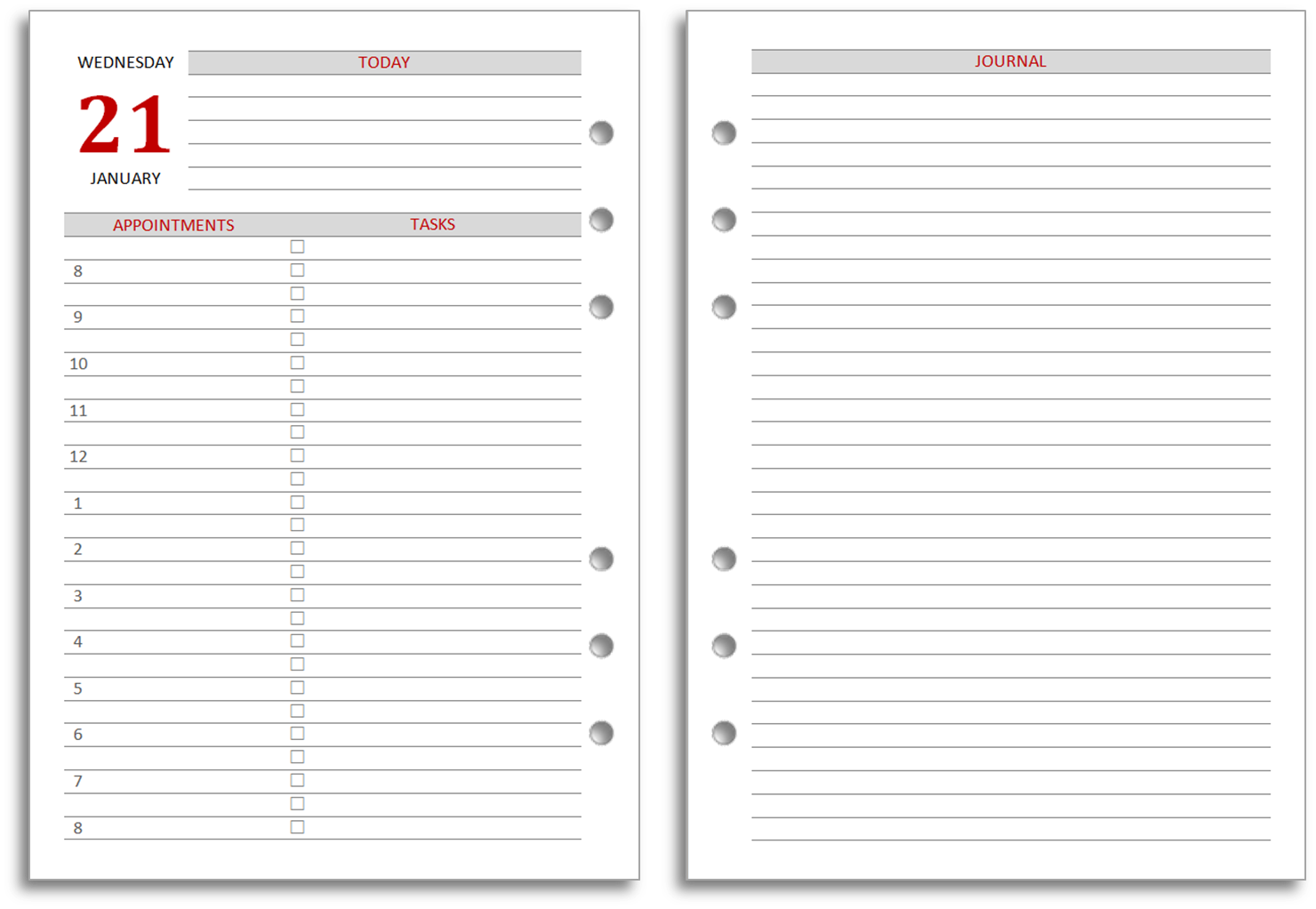
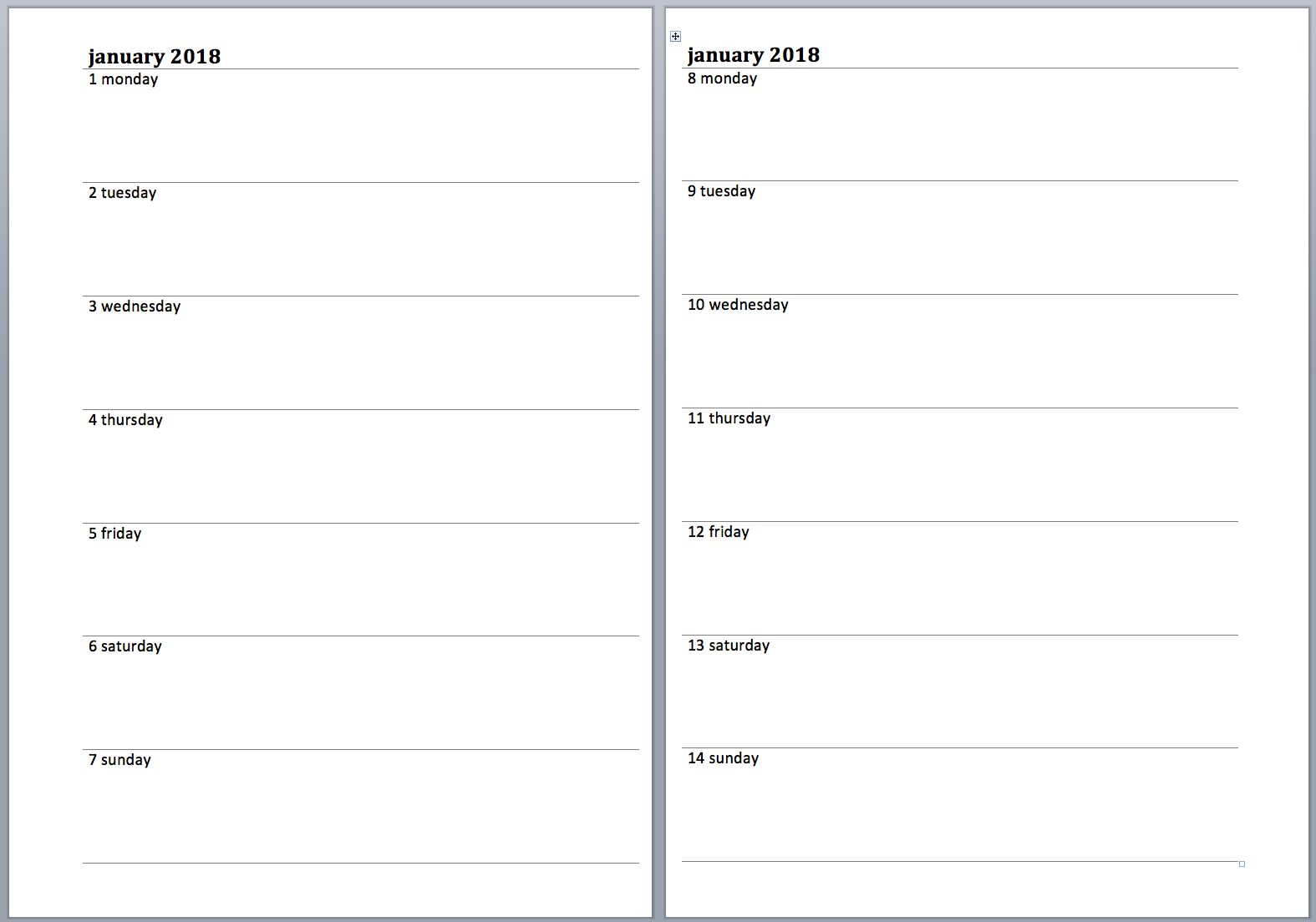
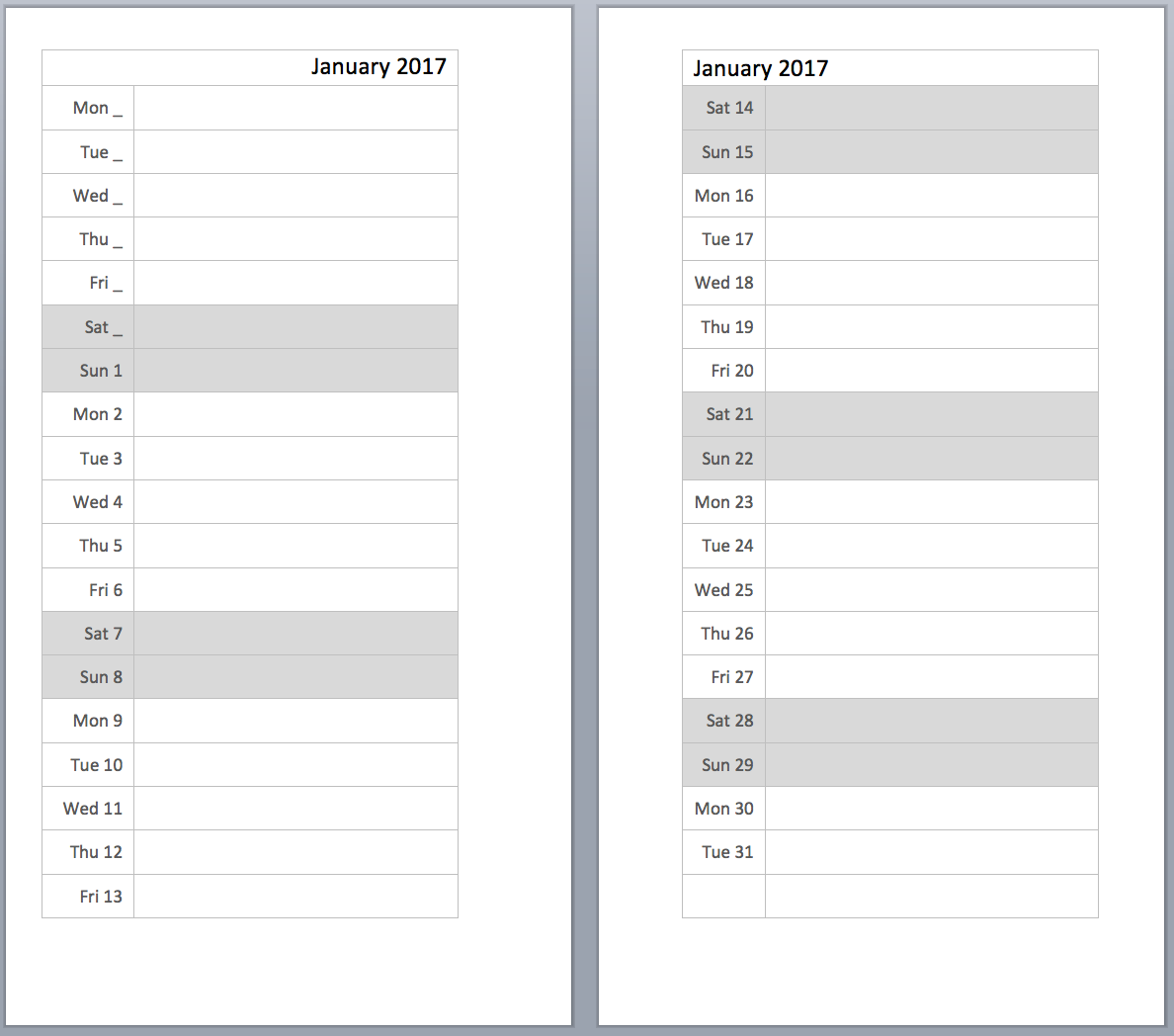
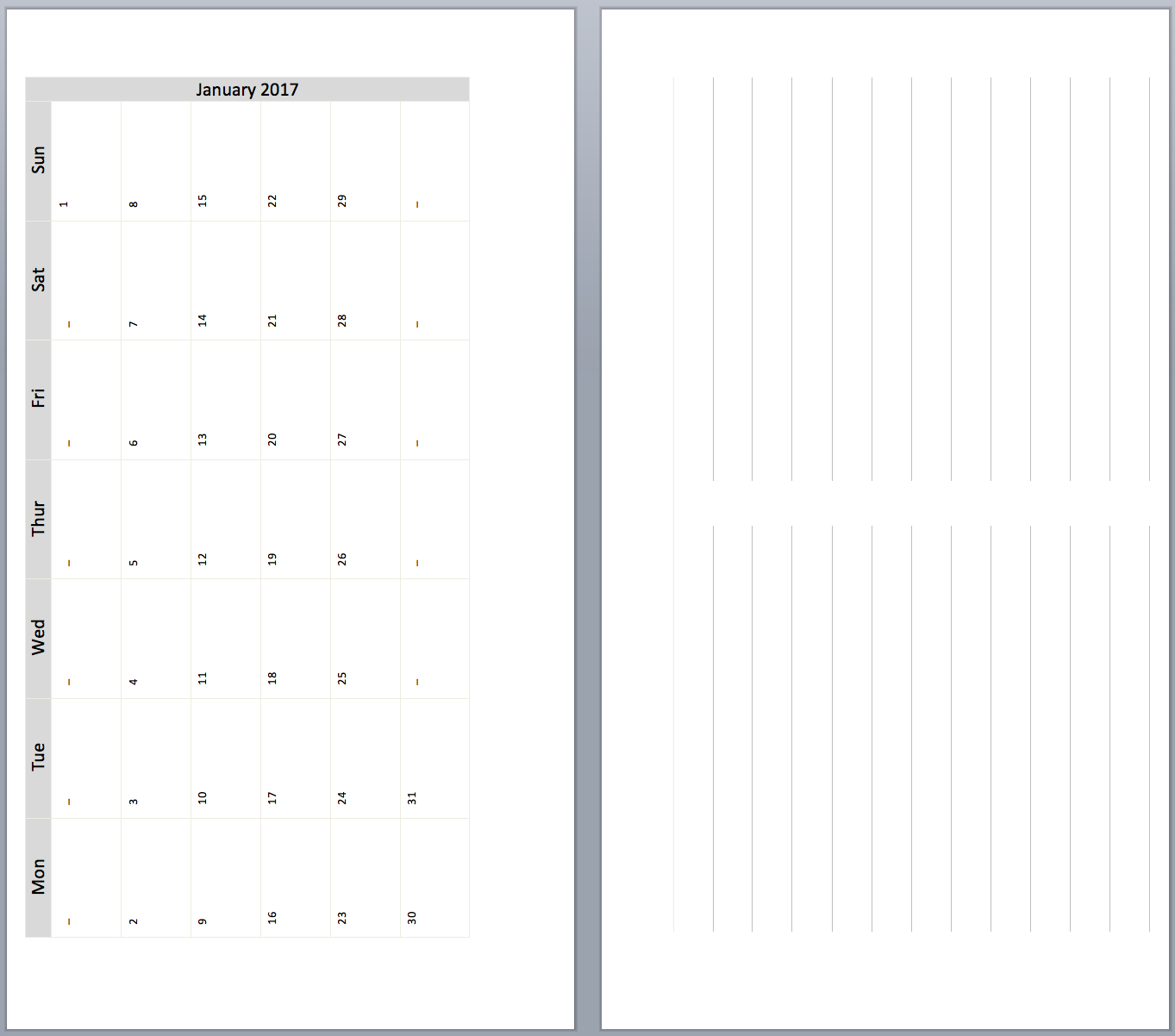
If you have a Filofax organiser, you probably have diary pages – probably ones made by Filofax. If you’re happy with those pages, great. If you’d like to try something different, read on. If you’d like to experiment or adapt a diary that is just right for your very particular needs then you’ve come to the right place.

Ray Blake of the My Life All in One Place blog and I have collaborated in an ongoing project to produce a range of diary layouts that can be downloaded, printed, punched and used. You can find them all here and they are all free. They are offered for download and use under a Creative Commons Licence. That means you can freely use and adapt them other than commercially. You can share these templates with other people, but you must not charge for them.

You need to decide whether you just want to download prepared layout sets for the full year, or whether you want to roll up your sleeves and adapt our templates to your own needs. Some of the things you can do when you have the source files are:
  • Make and print a diary for any year - past, present or future
  • Adjust the space given to different days or other template elements
  • Add your name or other details to each page
  • Make a diary for part of a year, or for any period you want
  • Change the language of month and day name
Follow the links below to the blog posts where the files are to be found. Often there will be several in one post, but the individual files will be clearly signposted and instructions are included in the posts. Not all of the sets we plan to produce are available yet. I'll make more of the links live as further sets become available.

Before downloading the PDF files and printing them please read the note at the foot of this page about PDF readers scaling the print output.

Please note that the previews will always show 2015 or earlier, but the real files should be the correct year.

Inserts for 2020

Please note that previews are not updated each year unless the design has changed.

A4/A5 Format
  1. Day per page .docx .pdf  Source Files Preview
  2. Day per page minimalist journal (narrow) .doc .pdf Source Files Preview
  3. Day per page minimalist journal (wide) .doc .pdf Source Files Preview
  4. Day per page (Time Management) .docx .pdf Source Files Preview
  5. Day on two pages .docx .pdf  Source Files Preview
  6. Day on two pages (Time Management) .docx .pdf Source Files Preview
  7. Day on two pages (Daily Dashboard .docx .pdf Source Files - Word Excel Preview
  8. Two days per page (Lined) .docx .pdf  Source Files Preview
  9. Two days per page (Unlined) .docx .pdf Source Files Preview
  10. Week per page .docx .pdf  Source Files Preview
  11. Week per page CC .docx .pdf  Source Files Preview
  12. Week per page with Tasks .docx .pdf  Source Files Preview
  13. Week plus Tasks sub-divided Days .docx .pdf Source Files Preview
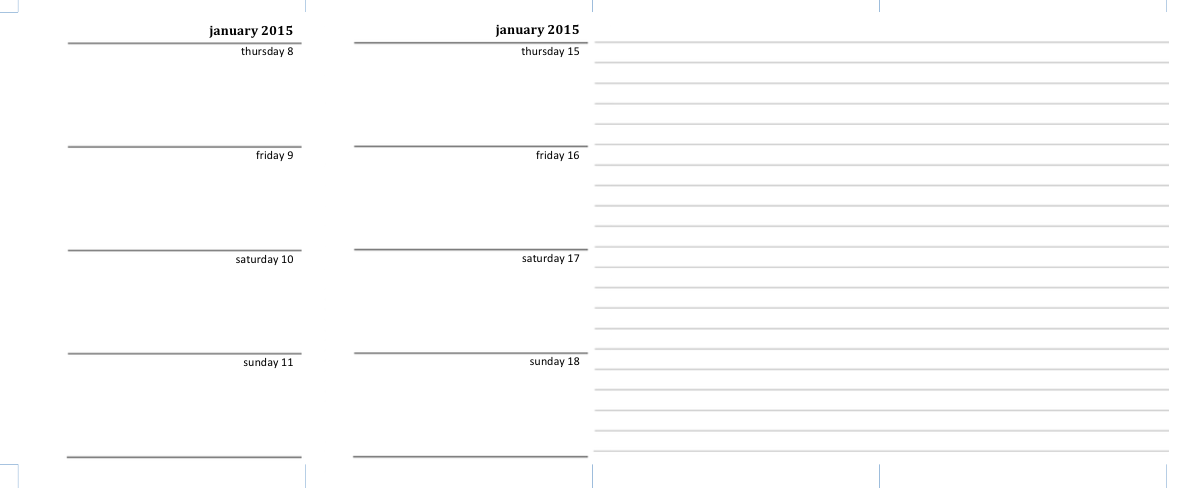
  14. Week on two pages Enhanced TM   .docx .pdf  Source Files Preview
  15. Week on two pages Enhanced TM (5 line version)  .docx .pdf  Source Files Preview
  16. Week on two pages Enhanced TM  with Journal  .docx .pdf  Source Files Preview
  17. Week on two pages Enhanced TM (5 line version) with Journal .docx .pdf Source Files  Preview
  18. Week on two pages Enhanced TM V3 (4 line version)  .docx .pdf  Source Files Preview
  19. Week on two pages Enhanced TM V3 (5 line version)  .docx .pdf  Source Files Preview (4 line)
  20. Week on two pages Enhanced Reversed TM (4 line version)  .docx .pdf  Source Files Preview 
  21. Week on two pages Enhanced Reversed TM (5 line version)  .docx .pdf  Source Files Preview 
  22. Week on two pages (cotton cream layout) .docx .pdf Source Files Preview
  23. Week on two pages Journal .docx .pdf  Source Files Preview
  24. Week on two pages Journal Lined .docx .pdf  Source Files Preview
  25. Week on two pages Vertical with tasks .docx .pdf  Source Files Preview
  26. Week on two pages Vertical without tasks .docx .pdf  Source Files Preview
  27. Week on two pages Minimalist Vertical .docx .pdf Source Files Preview
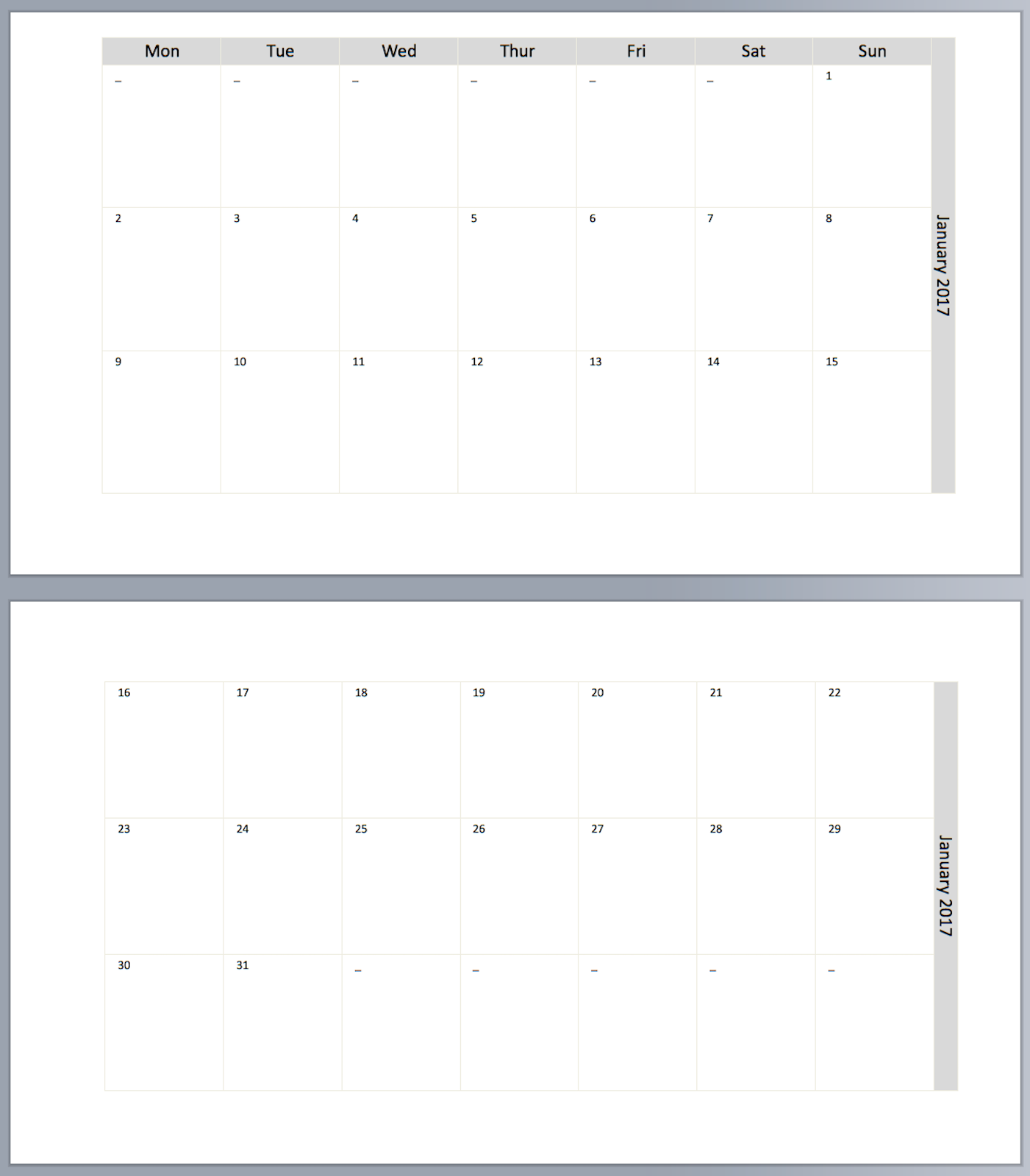
  28. Month per page .docx .pdf Source Files Preview
  29. Month per page (Horizontal Format) .docx .pdf Source Files Preview
  30. Month per page with notes: .docx .pdf Source Files  Preview
  31. Month on two pages .docx .pdf  Source Files Preview
  32. Month on two pages with notes .docx .pdf  Source Files Preview
  33. Month on two pages - lined .docx .pdf Source Files Preview
  34. Monthly Overview Diary A5 Single Sheets .docx .pdf Source Files Preview
  35. Monthly Overview Diary A5 Facing Pages .docx .pdf Source Files Preview
  36. Two months on one page .docx .pdf Source Files Preview
  37. Year planner A4 .docx .pdf Source Files Preview
  38. Year planner A4/A5 Z fold .docx .pdf Source Files Preview
  39. Year planner (vertical format) .docx .pdf Source Files Preview
  40. 2020 Year Calendar .doc .pdf Preview
A6 Inserts for 2020
  1. Day per page  - Word, PDF, Source (Word Excel), Preview
  2. Two days per page (Lined)  - Word, PDF, Source (Word Excel), Preview
  3. Two days per page  - Word, PDF, Source (Word Excel), Preview
  4. Week per page  - Word, PDF, Source (Word Excel), Preview
  5. Week view - Word, PDF, Source (Word Excel), Preview
  6. Week view (vertical layout)  - Word, PDF, Source (Word Excel), Preview
  7. Week plus Notes - Word, PDF, Source (Word Excel), Preview
  8. Week plus Tasks - Word, PDF, Source (Word Excel), Preview
  9. Week plus Tasks sub-divided Days - Word, PDF, Source (Word Excel), Preview
  10. Enhanced Time Management Week View - Word, PDF Source (Word Excel), Preview
  11. Enhanced Time Management Week View V2 - Word, PDF Source (Word Excel), Preview
  12. Enhanced Time Management Week View V2a - Word, PDF Source (Word Excel), Preview
  13. Month per page - Word, PDF, Source (Word Excel), Preview
  14. Month on two pages  - Word, PDF, Source (Word Excel), Preview
  15. Month on two pages (Horizontal format) - Word, PDF, Source (Word Excel), Preview
  16. 2020 Year planner  - Word 2020 PDF 2020, Source (Word Excel), Preview
  17. 2020 Year planner (vertical format) .docx .pdf Source(Word Excel) Preview
  18. 2020 Year Calendar .doc .pdf Preview
All of these A6 files are in A4 format and all should be printed on to A6 size paper as detailed in the previous post. There is one exception to this and that is the Year Planner, this should be printed on to A5 paper at 70% scale and then Z folded to fit in to A6.

Personal on Personal Paper
  1. Day per page .docx .pdf  Source Files Preview 
  2. Two days per page .docx .pdf Source .docx .xlsx Preview
  3. Week per page .docx .pdf  Source Files Preview
  4. Week per page plus notes and tasks .docx .pdf  Source Files Preview
  5. Week on two pages .docx .pdf Source Files Preview
  6. Week on two pages Vertical .docx .pdf  Source Files Preview
  7. Enhanced Time Management Week View Word PDF Source Files Preview
  8. Enhanced Time Management Week View V2 Word PDF Source Files Preview
  9. Enhanced Time Management Week View V2a Word PDF Source Files Preview
  10. Month per page .docx .pdf  Source Files Preview
  11. Month per page with notes: .docx .pdf Source Files  Preview
  12. Month per page with notes landscape .docx .pdf Source Files Preview
  13. Month on two pages landscape .docx .pdf Source Files Preview
  14. Month on two pages .docx .pdf  Source Files Preview
  15. Month on two pages with Notes .docx .pdf Source Files Preview
  16. Month on two pages (Horizontal) .docx .pdf Source Files Preview
  17. Month on two pages lined .docx .pdf Source Files Preview
  18. Monthly Overview Diary Single Sheets .docx .pdf Source Files Preview
  19. Monthly Overview Diary Facing Pages .docx .pdf Source Files Preview
  20. Year Calendar .docx .pdf Preview
Personal on A4 Paper
  1. Day per page .docx .pdf Source Files Preview 
  2. Day per page minimalist .docx .pdf Source Files Preview
  3. Day on two pages .docx .pdf  Source Files Preview
  4. Two days per page (Lined) .docx .pdf  Source Files Preview
  5. Two days per page (Unlined) .docx .pdf  Source Files Preview
  6. Week on one page .doc .pdf Source Files Preview
  7. Week on two pages Enhanced TM .docx .pdf  Source Files Preview
  8. Week on two pages Vertical layout .docx .pdf  Source Files Preview 
  9. Week on two pages .docx .pdf  Source Files Preview
  10. Week on two pages landscape layout .docx .pdf Source Files Preview 
  11. Month per page .docx .pdf  Source Files Preview
  12. Month on two pages .docx .pdf  Source Files Preview
  13. Monthly Overview Diary Facing Pages .docx .pdf Source Files Preview
  14. Year planner .docx .pdf  Source Files Preview
  15. Year planner (vertical format) .docx .pdf Source Files Preview
Personal on Letter Paper (North Americans Only!)
  1. Day per page .docx or .pdf Source Files  Preview
  2. Day per page minimalist .docx or .pdf Source Files  Preview
  3. Day on two pages .docx or .pdf Source Files  Preview
  4. Two days per page .docx or .pdf Source Files  Preview
  5. Two days per page (lined) .docx or .pdf Source Files  Preview
  6. Week on two pages - TM  .docx or .pdf Source Files  Preview
  7. Week on two pages - CC  .docx or .pdf  Preview
  8. Week on two pages - Vertical layout -  .docx or .pdf  Preview
  9. Week on two pages - Landscape layout .docx or .pdf  Preview
  10. Monthly Overview Diary Facing Pages .docx .pdf Source Files Preview
Pocket on A4 Paper
  1. Day per page minimalist .docx .pdf Source Files Preview
  2. Day on two pages .docx .pdf  Source Files Preview
  3. Two days per page (Lined) .docx .pdf  Source Files Preview
  4. Two days per page (Unlined) .docx .pdf  Source Files Preview
  5. Week on two pages enhanced TM .docx .pdf  Source Files  Preview
  6. Week on two pages CC Inspired Layout .docx .pdf Source Files Preview
  7. Month on one page .docx .pdf  Source Files Preview
  8. Month on two pages .docx .pdf  Source Files Preview
  9. Year Planner (Vertical Format) .docx .pdf Source Files Preview
Mini on A4 Paper
M2 on A4 Paper

Note: Printing Word or PDF files

When printing either the Word or the PDF files, it is essential that you set the paper size correct in the application and in any printer dialogue boxes on your PC/Mac. If you are printing on A4 paper, then you need to set the paper size to A4 not Letter or any other size.

If you don't set the paper size correctly then the files will be resized according to the paper size you have selected, despite having A4 paper loaded in the printer.

Printing PDF Files

When you print your PDF file, it prints out smaller on paper than the Word or other file it was created from.

When you print from Adobe Acrobat Reader, you will see this dialogue:


You will see that 'Print Scaling' setting is by default set to 'Shrink to Printable Area? That's the one that's shrinking your PDF when you print it.

Change the setting to 'None':


Now, when you print the PDF it will print at the right size.

Using the source files

Tutorial for MS Office for Mac 2016 (Office 365)

With the change to MS Office 2016 for Mac, the basic method is still the same, just where things are located has changed a little compared to previous versions of Office.

If possible please watch the video in HD and on a large screen.


Tutorial for MS Office for Mac 2011


Tutorial for MS Office for Windows 2010


Tutorial for MS Office for Windows 2003


Creative Commons License
This work by Philofaxy is licensed under a Creative Commons Attribution-NonCommercial 3.0 Unported License. Please download, adapt, use, share, but don't charge or use commercially.